
Vista Social Review 2026: A Cut Above The Rest?


Welcome to my Vista Social review.
Vista Social has a strong reputation as one of the better social media management tools on the market, especially for brands and agencies.
I wanted to see just how good it was, so I tested it out for myself.
In this in-depth Vista Social review, I’ll share my experience using all of its features and give you my take on its pros and cons. I’ll also explain pricing, explore some alternatives, and tell you everything else you need to know.
What is Vista Social?
Vista Social is an all-in-one social media management platform built for brands and agencies.

You can use it to manage multiple social media accounts and campaigns from one unified platform.
That includes publishing posts, replying to messages, tracking mentions, analyzing performance, and more.
Unlike other social media management platforms, Vista Social caters more towards brands than creators.
As such, it has some unique brand-focused features you don’t often see elsewhere, like reputation/review management and employee advocacy. It also has some of the best team collaboration features you’ll find anywhere.
What features does Vista Social offer?
Vista Social comes with a lot of features. The highlights include:
- Publishing tools
- Engagement / Inbox management
- Analytics & reports
- Social listening
- Link in bio
- Reputation management
- Employee advocacy
We’re going to explore its features in more detail next. I’ll let you look over my shoulder as I try them out so you can see how everything works. Ready? Let’s dive into it.
Getting started
Before you can access all of Vista Social’s features, you’ll need to connect your social profiles. You can do this from Account Settings > Connected Profiles.

One of the great things about Vista Social is how many different social media platforms it supports.
It works with all the main social networks—Facebook, Instagram, X (Twitter), TikTok, LinkedIn, Pinterest, and YouTube.
Plus, it also supports niche networks that most other social media management tools don’t, like Reddit, Threads, Tumblr, Snapchat, and Bluesky.
Aside from social networks, you can also connect it to review platforms like Yelp, TrustPilot, and TripAdvisor—more on this later.
If you’re managing multiple brands, clients, or projects in tandem, you can also group connected profiles using Vista’s Profile Groups feature. This will make it easier to keep each project separate.
Once you’ve finished adding profiles, you can access all the tools you need to manage your social media campaigns through the sidebar on the left. Let’s look at each of them.
Create
The Create tab is where you create, schedule, and publish new social media posts.
To get started, click Create > New post. Then, choose which connected accounts you want to share the post on in the sidebar on the left.

Next, write your content or use the AI assistant to generate a caption (or enhance your own). You can use the icons at the bottom to add things like hashtags, mentions, labels, polls, and emojis.
For visual posts, click the camera icon at the bottom to upload or import an image or video. All images are stored in the built-in media library.
Vista also integrates with design tools like Canva to make it easier to create images from scratch without ever leaving the app.
If you’re sharing one post to multiple platforms, captions and media can be customized for each social network.
Finally, choose how/when you want to post it. You have the option to save it as a draft, publish it right away, schedule it for a specific date/time in the future, or add it to a posting queue. You can also schedule follow-up comments.
If you choose to schedule it for a specific time, Vista Social will suggest some optimal times based on your historical data. In other words, it works out which time slots tend to generate the highest engagement for you, and recommends those.
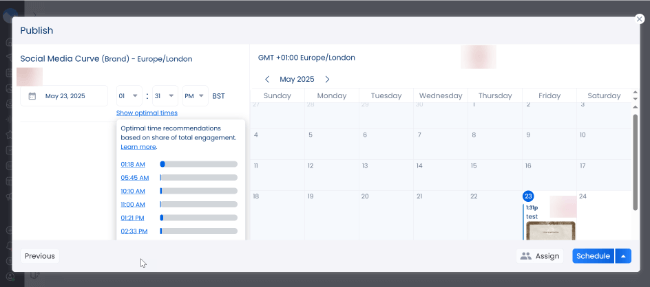
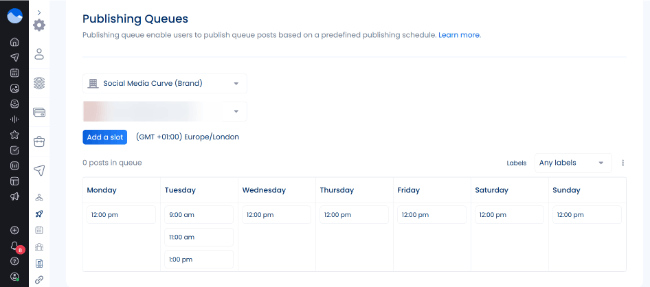
Posting queues work a little differently. Instead of choosing a specific time/date, you add the post to the front of a queue of posts you’ve created. Vista Social shares posts from that queue each week according to your weekly posting schedule.
You can set up a weekly posting schedule from Account Settings > Publishing Settings > Publishing Queues.
That’s the basic process of scheduling a post, but there are a few other advanced features in the Create tab worth mentioning before we move on.
Find content
Go to Create > Find content to discover news, posts, hashtags, images, GIFs, and videos to use in your posts.

You can search for content your audience might be interested in via keyword or profile.
Then, once you find something, click Add to media library to save it for later, or Create a post to open it up in the post composer (with a pre-written caption, share link, and media).
Bulk publishing
If you want to save time, you can create whole batches of posts at once using the bulk scheduling tool. Click Create > Bulk scheduling.

The easiest way to do this is to prepare your posts in a spreadsheet, then import them as a CSV file. You can also import from RSS, news sources, hashtags, user accounts, etc.
Smart publishing
The Smart Publisher tool (Create > Smart publishing) is a neat automation feature that allows you to create and publish up to 24 posts a day automatically.

It works hand-in-hand with the content discovery tool. Just choose the type of content you want to post on social: trending news or content from a specific blog (RSS).
Then, set a publishing time (e.g., as soon as content becomes available) and the number of posts you want to share a day.
Vista Social will automatically share a link to the content with its title as the caption and its featured image as the media. However, you can also choose to prepend or append text to each caption.
You also have the option of assigning your automated posts for review before sharing them and filtering out content that contains specific keywords.
Instagram & TikTok Planner
Click Create > Instagram Planner / TikTok Planner to visually plan your content.
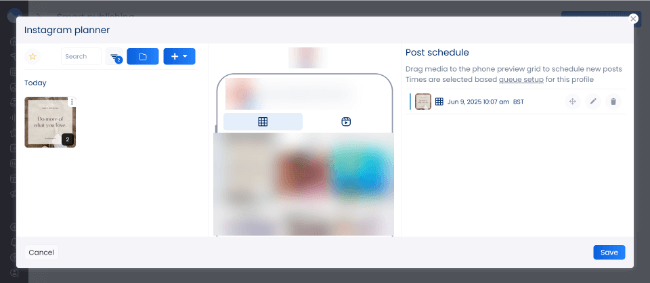
It’ll show you a preview of your post feed so you can see how all scheduled posts will look once they go live. This is useful if you’re aiming for a cohesive page aesthetic.
Calendar
The Calendar is where you view and manage all your scheduled posts.
It’s fully drag-and-drop, so you can move scheduled posts between dates to easily reschedule them, which is pretty neat.

You can also click any empty date in the calendar to add a new post or note on that date.
At the top, you can switch between three different calendar views—Monthly, Weekly, and Daily—depending on whether you want to zoom in or out.
And you can filter the calendar by everything: post status (drafted, failed, in review, rejected, etc.), user, label, content type, boost status, post type, profile/account, and so on.
Another really neat thing about Vista Social’s calendar is that you can populate it with notes about national and religious holidays, so you can see at a glance what’s happening around the world on any given date.
This helps when coming up with ideas for things to post about (and what hashtags to use)
I also like that the calendar is full-width and that you can choose the size of your post previews/thumbnails. A lot of other calendars make their thumbnails tiny, so it’s hard to see what you’re posting at a glance, but that’s not a problem with Vista Social.
Media
The Media tab is where you store and manage all your images, videos, sounds, documents, and polls.

You can click Add media in the top right to upload new files. Then, arrange them into folders to keep everything organized.
You can also click on any media in your library to create a post from it or download it to your device.
Plus, click Edit image to open it up in the built-in editor.

I’ll be honest: the image editor leaves a lot to be desired. The user interface is pretty bad, and you can only make very basic edits, like changing the ratio, resizing, cropping, and adding filters. There’s also a masking tool, but it’s a pain to work with.
Inbox
The Inbox is where you find all the features you need to manage and respond to audience engagements like comments, messages, and reviews.

Start by selecting the connected profiles you want to manage in the sidebar. You’ll then see a running list of all your conversations on those profiles in the main screen.
Click on any conversation to view all the messages ever exchanged with that person. You can reply to any message from inside your Vista Social inbox, both as a comment or as a DM. You can also leave internal notes for your team members to bring a conversation to their attention.
Listening
The Listening tool is one of Vista Social’s most unique features. It’s something you don’t get on most other social media management platforms.
You can use it to monitor social media for conversations containing specific keywords. This is useful if there’s something specific you want to keep a close eye on.
For instance, you could add a listener for mentions of your competitors. That way, you’ll get a running list of any mentions of your competitors so you can jump into those conversations and recommend your brand as an alternative.
Likewise, you could add a listening for ‘negative’ mentions of your brand to discover complaints and address them before they snowball.
To get started, click Listening > + Add listener.

Next, choose whether you want to monitor only comments and messages within your profiles or all posts across social networks and the wider web. The former is included with most Vista Social plans. The latter requires a paid add-on.
Next, choose what sources you want to listen to, craft your query by adding/removing keywords you want to listen out for, and apply any optional advanced filters (such as language and location filters).
You can set up multiple listeners if you want, and open up any of them to view a running list of all mentions of your tracked keywords.

Enterprise users also get automatic sentiment detection, so each mention is marked as positive, neutral, or negative based on the context around the mention. This is useful for monitoring overall brand sentiment.
You also get other useful insights, like mention volume over time, which can help you to measure brand awareness.
Reviews
Vista Social’s Reviews tool allows you to view, manage, and respond to reviews of your brand across all connected profiles.
That includes reviews on Facebook, Google Business, Yelp, TripAdvisor, OpenTable, and Trustpilot.
You’ll need to connect those platforms through your account settings first. Then, your Reviews feed will be populated by all your latest reviews, including the name of the reviewer, the network it’s from, the review, and the star rating.
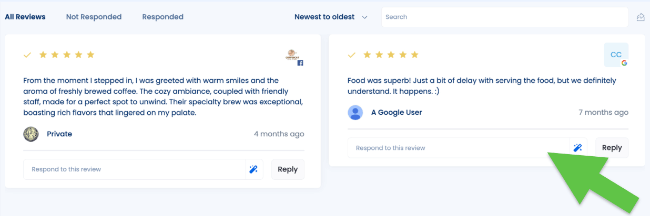
You can filter them by status (responded/not responded), sort by age or rating, and search based on specific keywords or phrases.
Plus, reply to reviews from inside Vista Social, and export reviews as PDFs to share them with your team, clients, and stakeholders.
Tasks
The Tasks tool is where you manage tasks assigned to you and other users on your account. It’s super useful for teams and agencies that need to collaborate efficiently.

You’ll see a list of all open tasks assigned to you under the My open tasks tab, but if you’d like, you can switch to other tabs to view a list of Closed tasks or Priority tasks. You can also view tasks assigned to other team members from here.
If you want to assign a new task to team members, click New Task in the top right corner. Next, select the user you want to assign the job to.
After that, choose a task category (e.g. general task, support issue, sales lead) and add a message explaining the task in the Notes field. If the task needs to be handled as soon as possible, tick the Priority box.
You can also create a task directly from a conversation in your inbox. Just click the pin icon next to the message, and then click Create a task to assign it to a user.
Report
The Report tool lets you build comprehensive analytics reports about your social media performance.
You can build custom reports from scratch or automate their generation and delivery.
To get started, click Reports > Run report. Then, choose the type of report you want to generate.

Pre-made options include social media performance, post performance, review performance, task performance, competitor analysis, sentiment analysis, and more.
You can customize the date range for each report and export/download them as PDF and CSV files. Plus, generate a shareable link to share them externally with clients.
I like how visual Vista Social’s reports are. Charts and graphs display data in a way that’s easy to understand.

I also like how customizable they are. With the report builder, you can customize each template to determine exactly what metrics you want to show, what social media channel and accounts to include, what text to display, and so on.
You can even set up white labelling under your account settings to add your own logo and branding.
Pages
Vista Social also comes with a Link In Bio tool that lets you build a simple, flexible landing page to bring all your important links and content together into one place.
This is useful if you’re using social media to promote multiple website pages in tandem. Add links to all the stuff you want to drive traffic to in a single landing page. Then, add a link to that landing page in your social media bios.
To build your landing page, click Pages > Create new page. Next, choose a starting template and enter a page name and profile group.

You’ll then be brought to the page builder. From here, you can change the appearance and layout and add blocks for your links, text, images, etc. Plus, add a QR code, view page statistics, and more.

Once you’ve set everything up, click Publish page and choose a domain name. Then, simply copy the short link and add it to your bio. Easy!
Advocacy
The last feature I want to mention is Vista Social’s Advocacy tool. This is another unique feature you don’t often see on social media management platforms.
It provides a way for brands to let their employees share their brand content on social media in a few clicks, while staying compliant with pre-approved copy.
To get started, click Advocacy > Create advocacy.
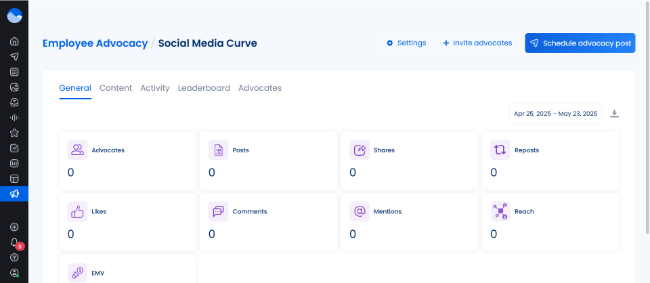
From here, you can invite new advocates and schedule new advocate posts to encourage your employees to share, repost, like, and comment on your content.
There’s a Leaderboard that displays the top employees who are doing the most to advocate for your brand on social media. This helps to gamify your social media advocacy campaigns and provides an incentive for employees to engage with them.
How much does Vista Social cost?
Vista Social offers plans for all budgets. There are four options to choose from: Standard, Professional, Advanced, and Enterprise.
The Standard plan costs $39/month and includes key features like planning & publishing, engagement, reports, etc. You can add up to 8 social profiles and 1 user.
The Professional plan costs $79/month and includes all Standard plan features plus bulk scheduling, post workflows, report scheduling, listening and review management tools, and more. You can add up to 15 social profiles and 5 users.
The Advanced plan costs $149/month and includes all Professional plan features plus advanced scheduling, reporting, workflows, and page features, as well as more integrations and an unlimited AI assistant. You can add up to 30 social profiles and 10 users.
The Enterprise plan starts from $379/month and includes all features, including everything on the Professional plan, plus sentiment detection, premium analytics, brand safety & compliance, and more. You can add 80+ social profiles and 25+ users.
You can get 20% off each plan when you sign up for yearly billing. Plus, get started for free with a 14-day free trial.
Optional add-ons are available for advanced features like listening, employee advocacy, and data migration. These are charged separately.
Vista Social pros and cons
Now we’ve covered all of Vista Social’s features and its pricing plans, here’s what I think are its main pros and cons.
Pros
- Comprehensive feature set. Vista Social is a true all-in-one social media management solution with a very rich feature set. You get all the tools you could possibly need to manage your social campaigns in one place.
- Supports all social networks. Vista Social works with most (if not all) social networks, including niche platforms like Reddit, Bluesky, and Threads that most other tools don’t integrate with.
- Great content calendar. Vista Social’s content calendar is one of its standout features. I love the way it looks and found it super easy to work with. The drag-and-drop functionality is particularly nice.
- Ideal for brands. There are a few features that make Vista Social a better choice for brands than other social media management tools (which are usually geared more towards creators). For instance, social listening, advanced reporting, and employee advocacy.
- Well priced. For the features you get, Vista Social is fairly well priced. It’s definitely not the cheapest but it does offer good value for money compared to some of the more popular alternatives.
- Unique features. Vista Social includes some unique features I haven’t seen in many other tools. This includes review management for platforms like Yelp, social listening, and employee advocacy. There’s even support for Reddit which is very rare to see in any social media tool.
Cons
- The user interface could be better. I think Vista Social’s user interface needs some work. Some tools looked dated and were frustrating to work with (like the image editor). I also noticed a few errors/bugs in some UI elements. For instance, when you hover over the Reports tool, it gives you the option to ‘View Calendar’, where it should say ‘View Reports’.
- Feature-gating. Vista Social locks a lot of features behind higher-priced tiers to encourage you to upgrade. For instance, sentiment analysis is only available on the expensive Enterprise plan, which is likely to be out of the budget range of most small businesses.
Vista Social alternatives
If Vista Social isn’t the right fit for you, here are some alternatives you might want to check out instead.
- SocialBee | Our review — My overall favorite social media management tool. Its advanced scheduling capabilities are excellent, and its AI assistant (Copilot) is second to none.
- Sendible | Our review — Another good choice for brands and agencies. It’s fully white-label and includes a unique client connect feature that makes it ideal for anyone working with clients.
- ContentStudio — A better choice for creators and content marketers. Includes some of the best content curation features you’ll find anywhere, as well as powerful social media publishing and analytics tools.
Final thoughts
That concludes my complete Vista Social review.
Overall, I’d recommend Vista Social for brands and agencies who want an easier way to manage their social campaigns. And for a cheaper price than some other tools on the market.
It’s one of the best social media management platforms on the market and comes with all the features you could need, including advanced tools like employee advocacy and social listening. Plus, its content calendar is a breeze to work with.
However, it’s not as well-suited to creators and solopreneurs who are looking for something simpler and more affordable and who don’t need all the bells and whistles.
Remember—you can always try it out for yourself for free to see if it’s a good fit for you. Use the button below to start your free trial.
Looking for more advice to help you succeed on social media? Check out our guide on how to put together a winning social media strategy.
